Managing the Global Login
The Global Login is a saved connection whose credentials become the defaults applied to a report’s data source. When it is enabled, ViewerFX for Crystal Reports uses its Server, database, and sign-in details to pre-fill the connection when you open or refresh a report.
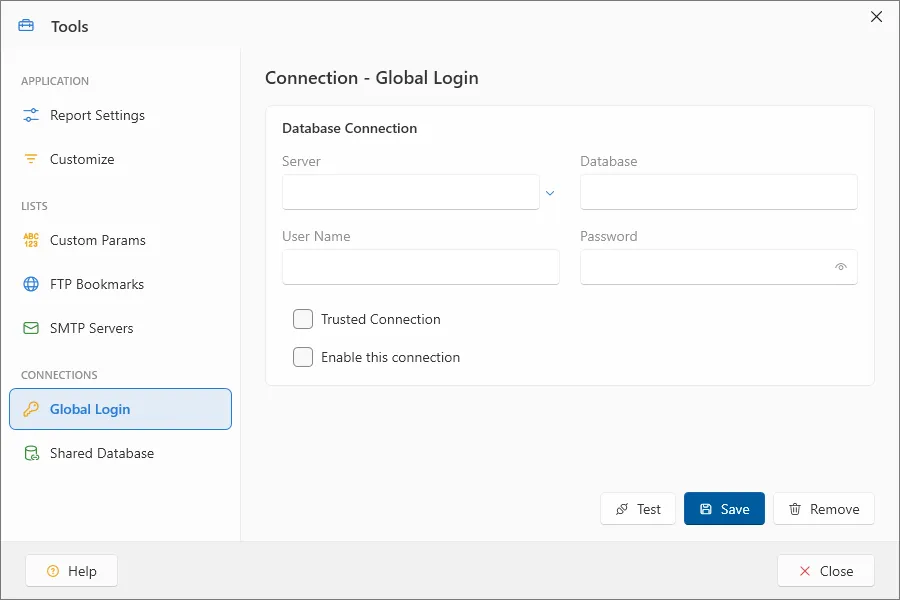
Note: The Global Login and the Shared Database connection use an identical card — the same fields and the same buttons — so the section you choose in the Settings window’s Connections sidebar is what tells you which connection you are editing. The Global Login supplies default credentials for report connections; the Shared Database connects to the shared report repository (see Managing Shared Reporting Server).
To manage the Global Login:
- On the ribbon, choose Report Viewer › View › Settings. The Settings window opens.
- In the Settings window’s Connections sidebar, choose Global Login.
- Enter the connection settings: the Server (or use the chevron button to pick a configured ODBC data source), Database, User Name, and Password, or select Trusted Connection to connect with Windows authentication instead of a user name and password. The password field has a reveal toggle.
- Select Enable this connection to turn the Global Login on. It is off by default, so the Global Login has no effect until you enable it here.
- Click Save. Use Test to verify the credentials before saving, and Remove to clear the saved connection.
How the Global Login is used
Section titled “How the Global Login is used”When the Global Login is enabled, opening or refreshing a report reads its credentials and pre-fills the report’s data-source connection with them, clearing Use Report Settings in the Connection / Parameter Settings dialog. The dialog only reads the Global Login — it does not edit it. To change the Global Login itself, return to Report Viewer › View › Settings › Connections › Global Login. For how the pre-filled values appear when a report opens, see Connection and data-source settings.