Emailing a report
You can email a report from ViewerFX for Crystal Reports as an attachment, sent through Microsoft Outlook or a saved SMTP server.
ViewerFX sends email through Microsoft Outlook, using its COM automation, or directly through a saved SMTP server. Emailing a report is available in every edition; the SMTP transport and the Outlook-contacts picker require a Standard or Site license.
To email a Crystal Report:
- Open the Crystal Report that you want to attach to an email message.
- On the ribbon, choose Report Viewer › Send › Email.
- Select Current Section (the currently viewed sub-report or drill-down) or Entire Report (the complete report).
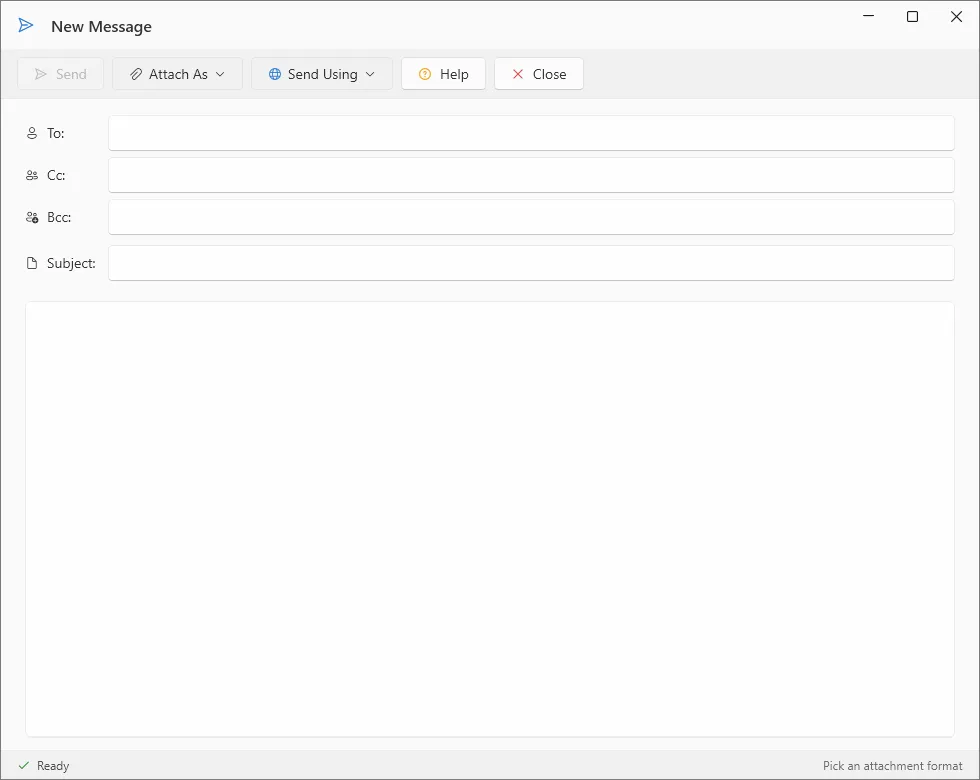
- The Email dialog appears. Click the Attach As button and choose the output format or formats to attach (see Export format types); more than one can be attached.
- Click the Send Using button and choose how to send the message — through Microsoft Outlook or a saved SMTP server (see Working with SMTP Servers).
- Address and write your email message, then send it. Your report is attached automatically to the message.
Note: Outbound email from a Trial or Free installation includes a short notice line; paid licenses send with no notice. Report exports are never marked.
Note: The Attach As menu does not list the HTML 3.2 and HTML 4.0 formats. Those formats are offered when you export from the ribbon and when you publish by FTP, but not as an email attachment.
Attaching as a ZIP archive
Section titled “Attaching as a ZIP archive”The Attach As menu also offers a Compressed File (.zip) option, which packages the attachment as a ZIP archive. It carries a compression-and-encryption submenu:
- No Compression
- Compressed w/No Encryption
- 64 bit (Explorer Compatible)
- 128 bit AES Encryption
- 256 bit AES Encryption
Every option except No Compression requires a Standard or Site license — that is, Compressed w/No Encryption, 64 bit (Explorer Compatible), and both AES options. Only No Compression is available in Free Mode; to attach without a paid license, leave the attachment uncompressed.