Opening reports
You can open a Crystal Report from your email application, from your file system, from your favorites, from your history, or by choosing the Open button on the ribbon. The appearance of the report depends on how its creator set it up. For example, a report might open with data that is stored with the report. The creator of the report may have enabled parameters that let you filter the data contained within the report without ever reconnecting to the original data store.
When you open a Crystal Report you can navigate through the report, print pages, zoom in and out, and perform other Crystal Report type functions. If you have a connection to the Internet open, clicking on a link in the report opens the target Web page in your browser.Note: Favorites require a Standard or Site license — see Saving favorites; run history also requires a paid license — see Run history.
To open a Crystal Report from within ViewerFX for Crystal Reports:
Do one of the following:
- On the ribbon, choose Report Viewer › Report › Open. In the Open dialog box, select a filename, and click Open. Crystal Reports usually have the extension .rpt.
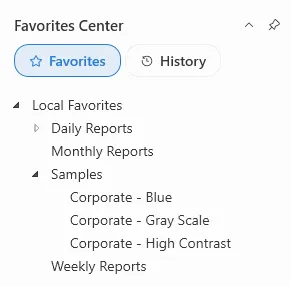
- Click a report link from your favorites list.
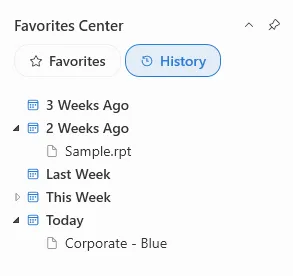
- Click a report link from your history list (see Run history).
- Click a report link from the Recent button.
Note: A single click on a favorite or history entry opens it — there is no separate double-click gesture.
When opening a report runs a live query against its data source — because the report has no saved data, or because Automatically Refresh Report Data is turned on — the Connection / Parameter Settings dialog box appears, provided at least one datasource or parameter option is enabled in Settings › Customize. Fill in the connection details and parameter values and click OK; the status bar displays the progress of validating and opening the report. The dialog also appears when you refresh a report with Report Viewer › View › Refresh. A report that opens straight from its saved data, with no forced refresh, does not show the dialog. See Connection and data-source settings for the full dialog and when it appears. Opening live report data requires a Standard or Site license.
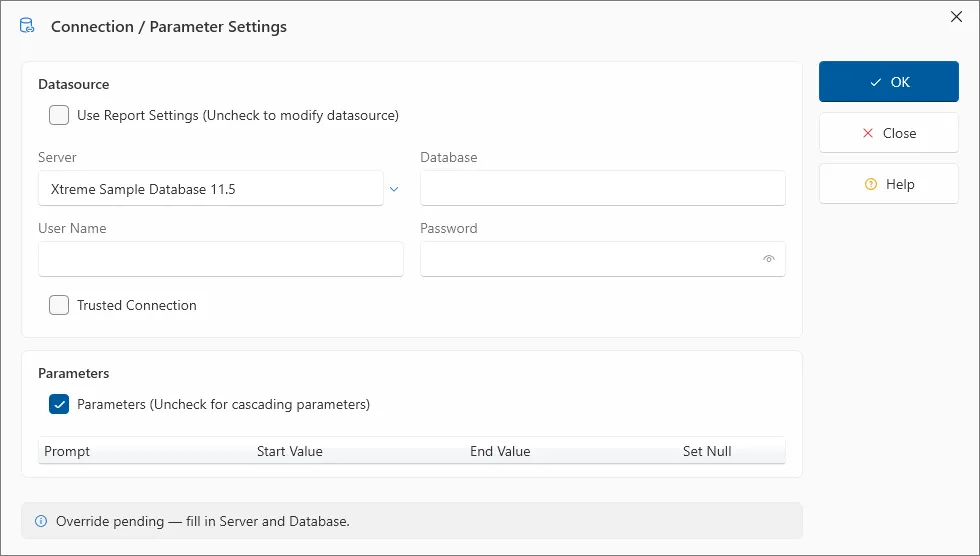
If a report is unable to connect to a valid data store it will not show the preview window.
Note: If more than one report is open, you can switch between reports by doing one of the following:
- Choose the report name from the Tabs button.
- Click the report tab within the report preview pane.