Customizing the application
You customize ViewerFX for Crystal Reports in the Settings window. Its Application sections control how reports open and let you hide the ribbon buttons and export formats you don’t use.
Opening the Settings window
Section titled “Opening the Settings window”On the ribbon, choose Report Viewer › View › Settings. The window lists its sections down the left in three groups — Application (Report Settings, Customize), Lists (custom parameters, FTP bookmarks, SMTP servers), and Connections (Global Login, Shared Database). Each pane is headed with its group and section — for example, Application - Customize. The window has no OK button: it closes with Close, and Help opens this documentation.
This page covers the Application sections. For the Lists sections, see Managing custom parameters, Managing FTP bookmarks, and Managing SMTP servers; for Connections, see Managing Shared Reporting Server and the Global Login note in Connection and data-source settings.
Report Settings
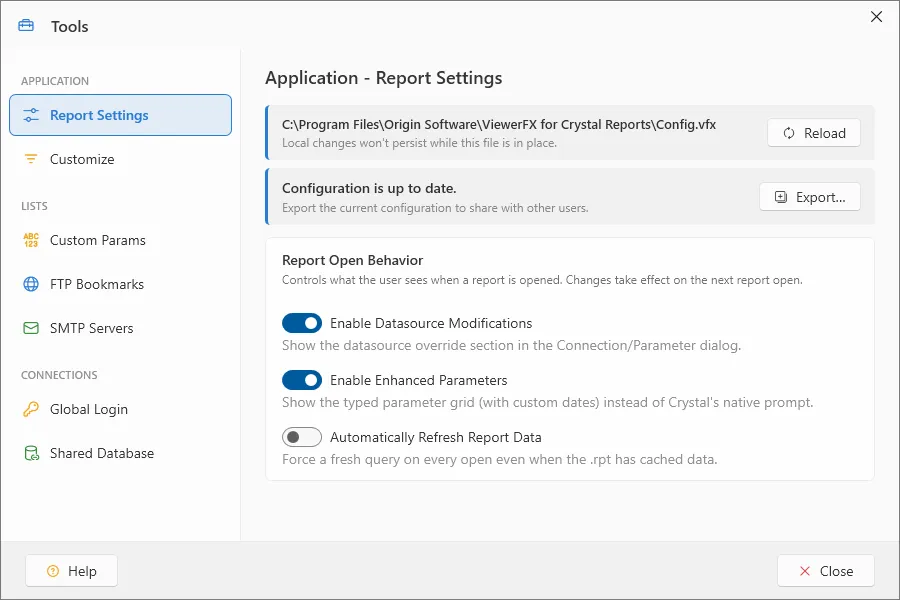
Section titled “Report Settings”The Report Settings section holds the Report Open Behavior card with three checkboxes:
- Enable Datasource Modifications — Show the datasource override section in the Connection/Parameter dialog. On by default.
- Enable Enhanced Parameters — Show the typed parameter grid (with custom dates) instead of Crystal’s native prompt. On by default.
- Automatically Refresh Report Data — Force a fresh query on every open even when the .rpt has cached data. Off by default.
The first two govern the Connection and data-source settings dialog. Changes take effect on the next report open.
Customize
Section titled “Customize”The Customize section has two cards.
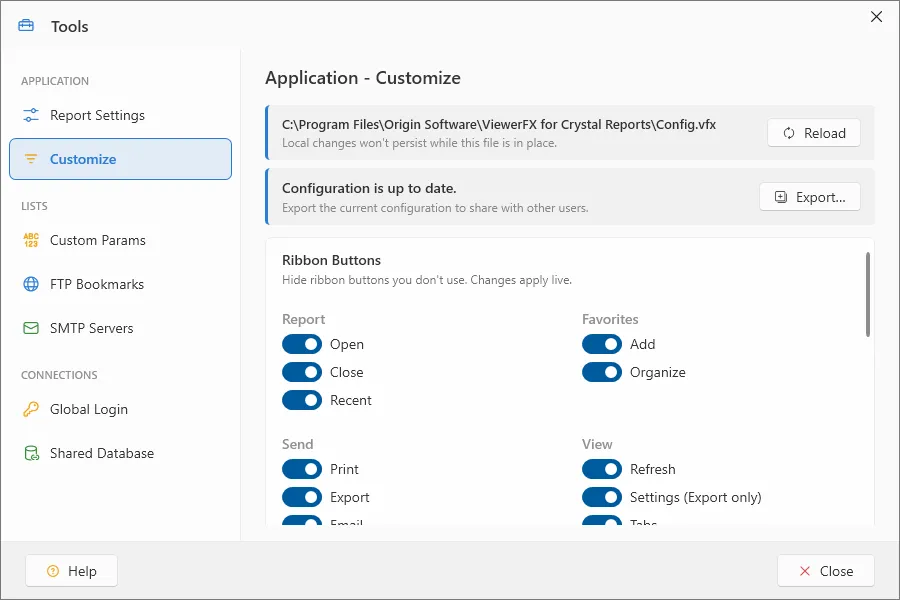
Ribbon Buttons
Section titled “Ribbon Buttons”The Ribbon Buttons card lists every ribbon command as its own checkbox, laid out in two columns and grouped by ribbon group in ribbon order — Report, Favorites, Send, View, Support, and the Preview groups. Clear a box to hide that button; check it to show it. Its note reads Hide ribbon buttons you don’t use. Changes apply live — unlike Report Settings, these take effect immediately, without reopening a report.
One entry is labeled Settings (Export only): you can hide the Settings button from a configuration you export for others, but never from your own copy — so clearing it here has no effect on your ribbon. This keeps you from locking yourself out of Settings.
Export Formats
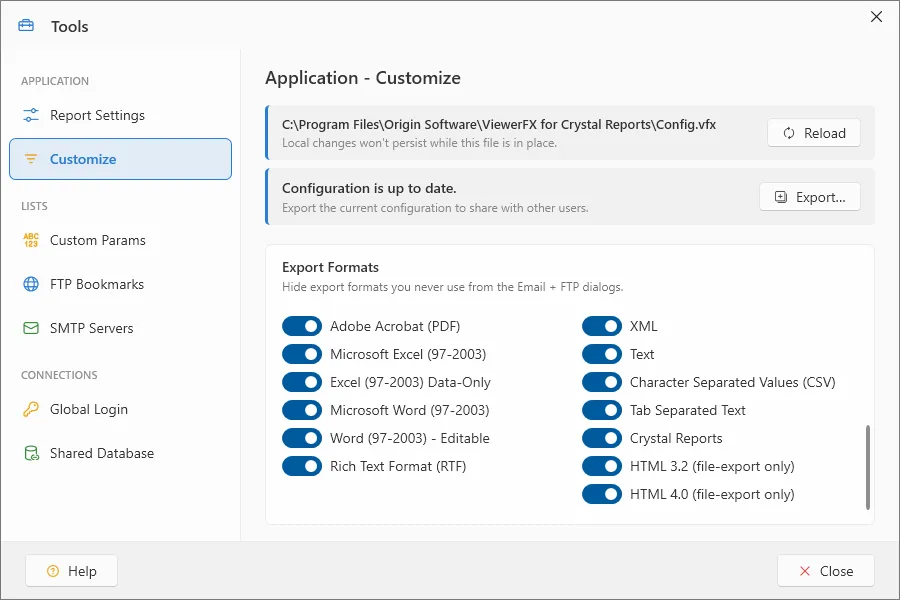
Section titled “Export Formats”The Export Formats card lists the export formats, each as its own checkbox:
Adobe Acrobat · Microsoft Excel 97-2003 · Microsoft Excel 97-2003 Data-Only · Microsoft Word 97-2003 · Microsoft Word 97-2003 Editable · Rich Text Format · XML · Text · Character Separated Values (CSV) · Tab Separated Text · Crystal Reports · HTML 3.2 · HTML 4.0.
Clearing a format hides it from every place ViewerFX offers a format to pick — the ribbon Export dialog, the Email Attach As menu, and the FTP Save as type list.
Where your changes are saved
Section titled “Where your changes are saved”Customization is saved per user, in the Windows registry — not per machine, so each user’s choices are their own. The Settings window edits a working copy; your changes are written when you click Apply.
Deploying a standard configuration
Section titled “Deploying a standard configuration”Two elements on the Application sections relate to deploying a standard configuration to other machines. A Configuration is up to date banner carries an Export… button that saves the current configuration to share with other users. When a configuration file has already been deployed to this machine, an administrator strip instead reports that a deployed configuration is in place and that your local changes will not persist. Both appear only on the Application sections — Report Settings and Customize — never on Lists or Connections. For exporting, distributing, and locking a configuration file, see Deploying a standard configuration.