Managing custom parameters
Custom parameters are used to pass values to a report. This means that the information displayed on a report can be different depending on what properties have been defined for the parameter. For example, a “Beginning of the month” parameter could be used to generate a report on a monthly basis without the need to specify the current month’s start date.
Note: Custom parameters require a Standard or Site license.
To manage the list of custom parameters:
- On the ribbon, choose Report Viewer › View › Settings. The Settings window opens.
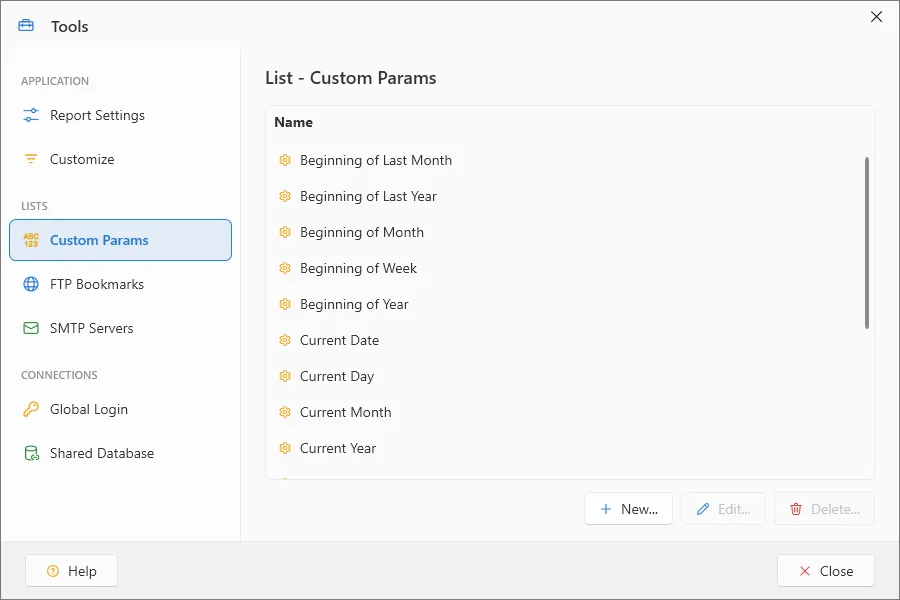
To create a new custom parameter:
- Select the Custom Parameter section in the Settings window.
- Click the New button (See Working with Parameters).
To modify an existing custom parameter:
- Select the Custom Parameter section in the Settings window.
- Highlight the custom parameter you want to modify.
- Click the Edit button (See Working with Parameters).
To delete an existing custom parameter:
- Select the Custom Parameter section in the Settings window.
- Highlight the custom parameter you want to delete.
- Click the Delete… button.
- Click Yes when the confirmation dialog box appears. The custom parameter will be permanently removed from ViewerFX for Crystal Reports.
Note: This cannot be undone — a deleted custom parameter must be recreated.