Connection and data-source settings
The Connection / Parameter Settings dialog sets how the open report connects to its data source and which parameter values it uses. It appears when you open a live report or refresh, provided the matching options are enabled in Settings.
When the dialog appears
Section titled “When the dialog appears”The dialog is governed by two options in Settings › Customize — datasource modifications and enhanced parameters — together with whether opening the report runs a live query against its data source:
- It appears when opening a report runs a live query against its data source and at least one of the two options is enabled. A live query runs when the report has no saved data, or when it has saved data but Automatically Refresh Report Data (in Settings) forces a fresh query on open (see Opening reports).
- It also appears when you refresh the open report with Report Viewer › View › Refresh — a refresh always runs a live query. There is no dedicated ribbon button that opens the dialog; refreshing is how you reopen it deliberately.
- A report that opens straight from its saved data, with no forced refresh, does not show the dialog.
- If both options are turned off, the dialog never appears, and Crystal Reports’ own login and parameter prompts are used instead.
Opening live report data requires a Standard or Site license.
The two cards
Section titled “The two cards”The dialog is not tabbed. It shows up to two stacked cards, a status line, and a button column with OK, Close, and Help. Clicking OK always re-runs the report’s query — even if you changed nothing. Each card is governed by its own option in Settings › Customize, independently:
- Enable Datasource Modifications shows the Datasource card.
- Enable Enhanced Parameters shows the Parameters card.
If only one option is enabled, only that card appears and the dialog still opens. If both are disabled, the dialog does not open at all.
Datasource
Section titled “Datasource”The Datasource card begins with a Use Report Settings (Uncheck to modify datasource) checkbox. Leave it selected to connect using the information saved with the report; clear it to enter your own connection details.
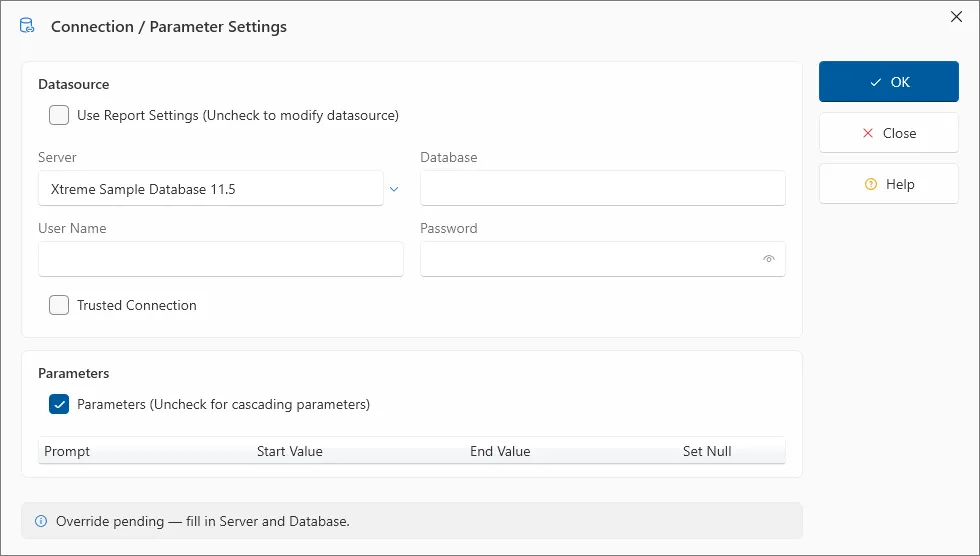
For a report with a single data source, the card shows Server, Database, User Name, and Password fields and a Trusted Connection checkbox, which connects with Windows authentication instead of a user name and password. The Server field also acts as a data-source picker: a chevron button (tooltip Pick an ODBC DSN) chooses a configured ODBC DSN, after which the Server field displays the DSN name, and a clear button (tooltip Clear the DSN binding) removes it. The same chevron also offers Browse for data file…, for a report whose data source is a file — such as a Microsoft Access database — so you can point the report straight at the file instead of at a server. Password fields include a reveal toggle.
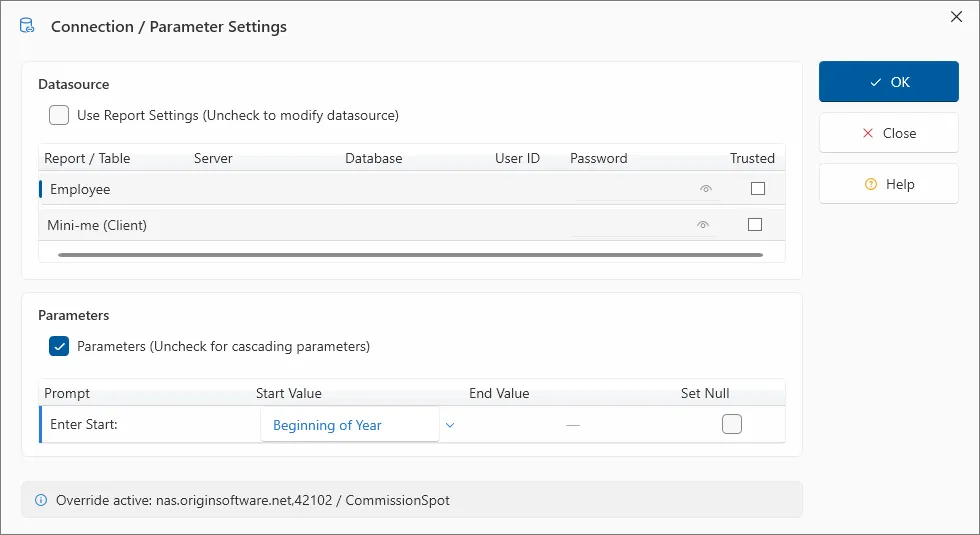
For a report whose tables draw on different data sources, the card shows a grid with one row per table and the columns Report / Table, Server, Database, User ID, Password, and Trusted, so you can set each table’s source individually across the main report and any subreports.
Parameters
Section titled “Parameters”The Parameters card begins with a Parameters (Uncheck for cascading parameters) checkbox and shows a grid with the columns Prompt, Start Value, End Value, and Set Null. The Start Value cell offers a chevron for picking a saved custom parameter; End Value applies only to range parameters and shows an em dash where it does not apply. The value cells match each parameter’s data type — a date parameter shows a date picker, a Boolean parameter a true/false choice, and so on — so each value is entered in its correct form. The card appears whenever enhanced parameters are enabled, even for a report that has no parameters — in that case the grid shows its column headers with no rows.
Status line
Section titled “Status line”A status line reports the state of the datasource override and updates as you fill the card in. While Use Report Settings is cleared and a required field is still empty, it prompts for what is still needed — for example, Override Pending - fill in Server. Once you have entered a server and database, it confirms the override as Override active: followed by the server and database, separated by a slash — for instance, Override active: nas.originsoftware.net,42102 / CommissionSpot.
If opening or refreshing fails
Section titled “If opening or refreshing fails”When you click OK, ViewerFX runs the report’s query with the connection and parameter values you entered. If that attempt fails — for example, the database rejects the credentials — ViewerFX brings you back to this dialog so you can correct the details and try again, instead of leaving the report closed or blank. Each OK makes a fresh attempt, so you can keep adjusting until it succeeds. To stop trying, click Close; the report tab closes.
Global Login
Section titled “Global Login”If a Global Login connection is configured and enabled, this dialog uses it as the default. When its Enable this connection box is checked, the dialog reads the Global Login and pre-fills the connection fields with those credentials, clearing Use Report Settings for you. Enable this connection is off by default, so out of the box the dialog does not pre-fill from Global Login.
This dialog only reads the Global Login — it never edits it, and it does not display the words “Global Login.” You set up, enable, and change the Global Login in the Settings window; see Managing the Global Login.
Other parameter surfaces
Section titled “Other parameter surfaces”The Preview tab’s Panels › Parameters button does not open this dialog — it toggles Crystal Reports’ own parameter side-panel. This dialog has no ribbon button of its own; on an already-open report you reach it by refreshing with Report Viewer › View › Refresh (with at least one Customize option enabled).
Two other surfaces edit parameters, both Crystal’s own:
- Crystal’s native parameter side-panel — the panel the Panels › Parameters button shows — has its own Apply and Delete for editing values in place.
- Crystal’s native Enter Parameter Values prompt appears at render time when enhanced parameters are turned off (cascading mode).
There is no keyboard shortcut and no right-click context menu for editing parameters; the surfaces described here are the only ways.
What the parameter grid shows — and what it doesn’t
Section titled “What the parameter grid shows — and what it doesn’t”The typed grid does not list every parameter a report defines. It shows the parameters that are yours to fill in and leaves the rest to the report or to Crystal Reports’ own prompt:
- Main-report parameters get their own rows.
- Unlinked subreport parameters appear as well, labeled Name (SubreportName) so you can tell which subreport each one belongs to.
- Server-provided, linked, and not-in-use parameters do not appear. These are set by the report or its data source rather than by you, so the grid omits them — a grid that is shorter than the report’s full parameter list is normal, not a fault.
Two kinds of parameter the grid cannot edit, and both are handled by Crystal’s native Enter Parameter Values prompt instead:
- Dynamic (cascading) list-of-values parameters — the ones that offer a drop-down of values read from the database. The Crystal engine provides no way to fetch those values outside its own prompt, so the grid cannot show the drop-down. This is a limitation of the reporting engine, not a ViewerFX setting.
- Multi-value parameters — parameters that accept more than one value — are deliberately kept out of the grid and handed to the native prompt, which is their editor. One consequence to expect: with Enable Enhanced Parameters on, clicking OK re-prompts every multi-value parameter at render, including values that were saved with the report. This is intended, not a fault — the grid clears multi-value parameters so the native prompt collects them each time.
Note: If a report’s parameters do not show up in the grid — because they are dynamic list-of-values or multi-value parameters — turn Enhanced Parameters off to reach them. Turning off the enhanced grid is, counter-intuitively, what gives you the richer parameter types: with it off, Crystal’s native prompt handles the report’s parameters, including the dynamic and multi-value ones the grid cannot. Turn it off for every report in Settings › Customize, or for the current report by clearing the Parameters (Uncheck for cascading parameters) checkbox in this dialog.
What the options change beyond visibility
Section titled “What the options change beyond visibility”- With Enable Datasource Modifications turned off and no Global Login configured, the report’s datasource is not overridden and Crystal Reports’ native data-source prompt is used.
- With Enable Enhanced Parameters turned off, parameters are handled in cascading mode through Crystal Reports’ native parameter prompt rather than the grid above.
- Automatically Refresh Report Data (also in Settings) does not change this dialog, but because it forces a fresh query on every open, it can bring the dialog up for a report that would otherwise open straight from its saved data.
For unattended runs, the same per-table connection information can be supplied on the command line as a DataSources= manifest, which the Command Line Builder generates for you — see Command line parameters.