Organizing favorites
After you “bookmark” Crystal Reports by saving them in your Favorites folder, you can easily organize your favorite reports into folders that apply to your circumstances. To organize your favorites, click the Organize button in Report Viewer › Favorites on the ribbon. In the Organize Favorites dialog box, you will see a list of your favorite reports and folders.
Note: Favorites require a Standard or Site license — see Saving favorites.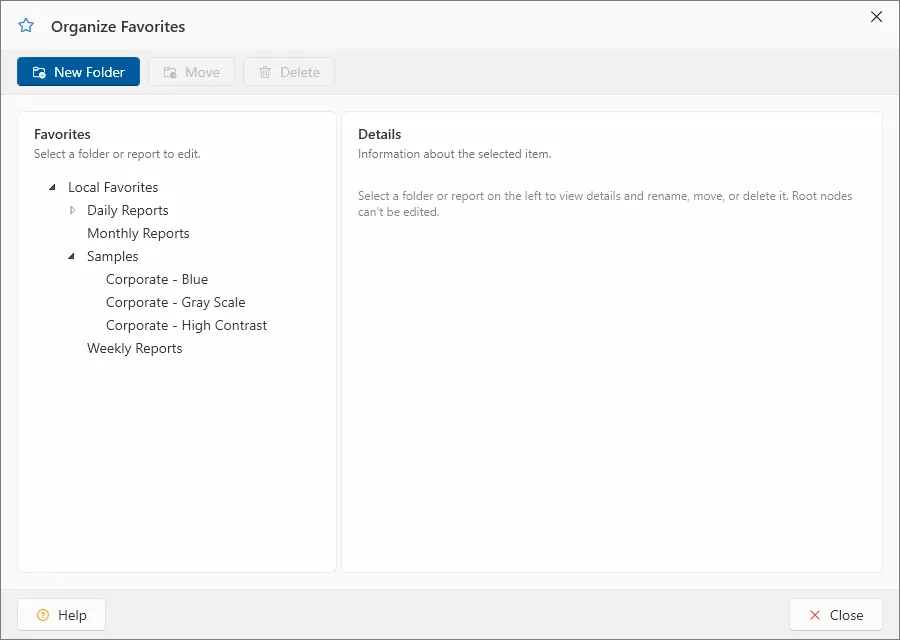
From here you can do the following:
- Open folders: Click a folder to expand it and see the reports it contains.
- Create new folders: Click New Folder, type a name for the new folder, and then press ENTER.
- Move favorites: Select a report or folder and then drag it to the new position or folder. You can also move items by selecting the report or folder, clicking Move, and then choosing the folder you want to move it to.
- Rename reports or folders: Select a report or folder and then click Rename. Type the new name, and then press ENTER.
- Delete reports or folders: Click a report or folder, click Delete, and then click Yes to remove it.
- Export or import favorites: Click Export or Import to move favorites to or from a
.vfffile — for example, to another machine or to an administrator to prepare. See Exporting and importing favorites. - Command line: Used to provide access to stored favorites from other applications. ViewerFX for Crystal Reports can be used as the default viewer for an external application. To access a stored report from the command line do the following:
- Locate the executable path to ViewerFX for Crystal Reports (for example
c:\program files\origin software\viewerfx\viewerfx.exe). The exact path toviewerfx.exedepends on where you installed ViewerFX; the shortcut’s Target already contains it. - Use the above path along with the Command Line Parameter (In this case
R000067) to display the report. For example:c:\program files\origin software\viewerfx\viewerfx.exe R000067
- Locate the executable path to ViewerFX for Crystal Reports (for example
When you are finished organizing your favorite reports, click Close.