Exporting a report
Finished reports can be exported to a number of popular formats, such as spreadsheet, word processor, HTML, and other common data interchange formats. This makes the distribution of information easier. For example, you may want to use the report data to project trends in a spreadsheet package or to enhance the presentation of data in a desktop publishing package.
Note: Crystal Reports lets you insert objects anywhere on the report page. When you export to formats such as Microsoft Word, Microsoft Excel, and HTML, however, objects that you placed between lines are moved to the closest line in the output.
The exporting process requires you to specify a format and a destination. The format determines the file type, and the destination determines where the file is located.
Note: Exporting is available in every edition; some export formats require a Standard or Site license — see Export format types.
To export to a disk file:
- Select the report you would like to export.
- On the ribbon, choose Report Viewer › Send › Export.
- Select Current Section (the currently viewed sub-report or drill-down) or Entire Report (the complete report).
- The Export dialog box will appear.
- Select the export format type from the Save as type drop-down list (see Export format types).
- Select the appropriate directory.
- Enter the File name.
- Click Save.
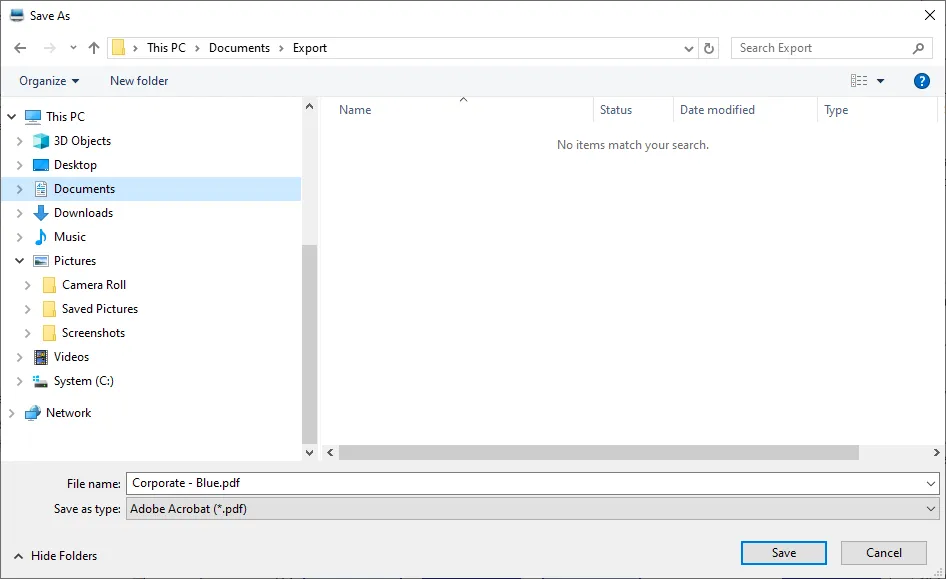
Note: The program exports the report and saves it in the designated directory.